
What "model-based" building code compliance means
Model-based building code compliance means evaluating a design directly within the BIM model, rather than checking compliance after drawings are complete.
Model-based compliance changes when that check runs. This shift is part of a broader move toward building code compliance during design.
Instead of reading code and applying it manually, the code is translated into structured logic that evaluates directly against the model.
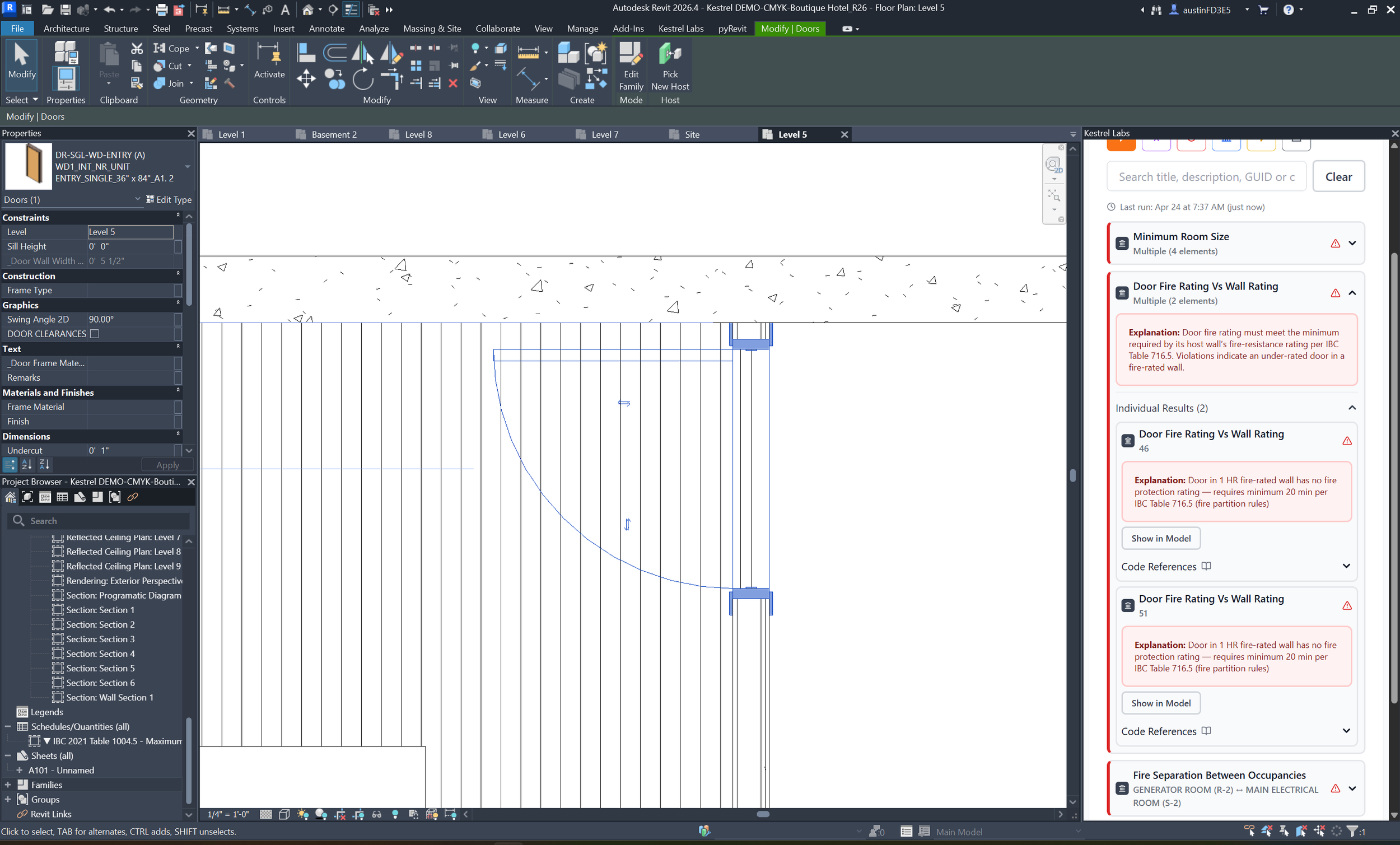
Every flagged issue is tied to a specific element and cited to a code section so teams can see what's wrong, why it matters, and how to resolve it.
How compliance runs inside the model
Kestrel is built around this approach.
It translates licensed building code data, including the International Code Council (ICC), into machine-executable logic that runs inside the design environment.
Checks take about 30 seconds and can be run continuously throughout design.
What changes when compliance happens during design
This shift changes how teams work.
Instead of discovering issues at plan review, compliance becomes part of the design process itself. This makes it possible to catch building code compliance issues during design rather than after submission.
The shift this represents:
- From documents to data
- From manual interpretation to structured evaluation
- From end-of-process checks to continuous feedback
What this looks like in practice
Building code becomes something the model can understand.
Kestrel flags code compliance issues directly in the model, with explanations and cited code references.
Compliance is no longer a separate workflow. It becomes part of the design environment itself.
Where this is going
Building code compliance is moving into the model.
We break down this shift in more detail here: How building code compliance is moving into the BIM model →
For a broader view of the current landscape: What tools exist for building code compliance in Revit →
The role of AI in this shift is explored further in: AI building code compliance in Revit →
If you want to see this in your own model: Schedule a demo →